
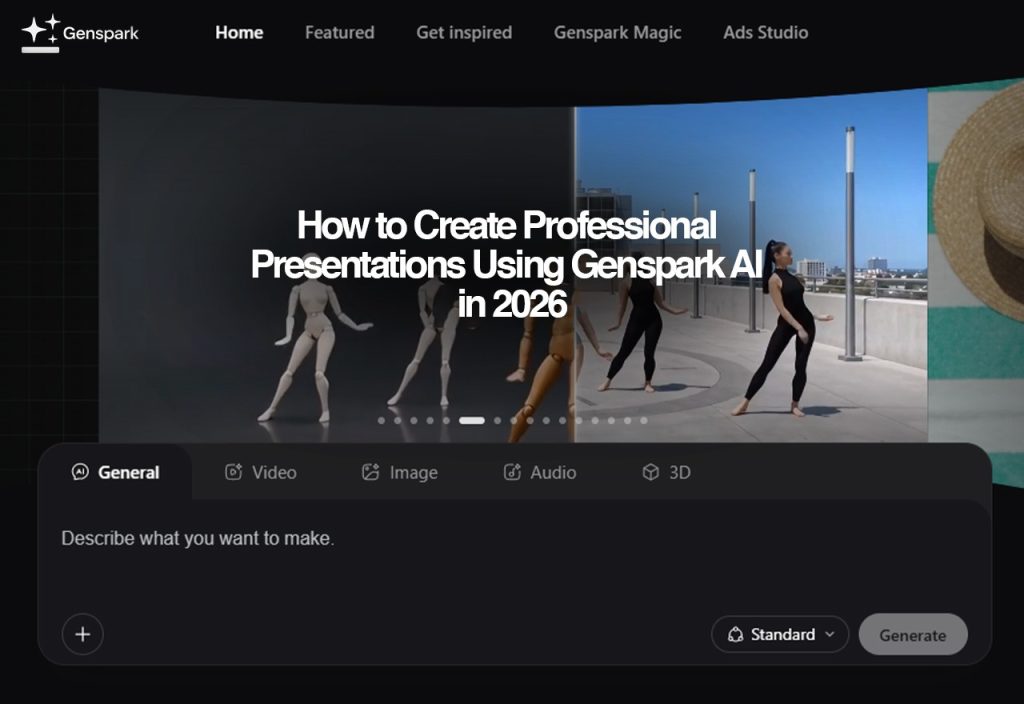
Staring at a blank slide with a deadline looming? We've all been there. Genspark AI Slides can turn a short request into a structured, designed deck, so you spend less time nudging text boxes and more time shaping your message. Here's how to do it, step by step.
What Is Genspark AI Slides?
Genspark AI Slides is a presentation agent inside the Genspark workspace. You describe your topic, add any source files, and it researches, organises, and designs the deck page by page.
It blends writing help with AI-powered design, which makes it handy for students, teachers, marketers, founders, consultants, and busy teams. You don't need design experience. A clear idea of your audience and goal is a great place to start.
How to Create a Presentation Using Genspark AI
Here are the simple steps that help you make a presentation
Step 1: Open Genspark AI and Access AI Slides
Sign in, then choose Genspark AI Slides from the homepage or the “New” menu.
Step 2: Choose Your Presentation Mode
Pick Professional for client or boardroom decks, or Creative for visual, marketing-style work. Choose carefully, because you can't switch modes after creating the project.
Step 3: Enter a Presentation Prompt
Tell it your topic, audience, goal, slide count, and tone. For example: “Create a 10-slide sales deck about our accounting app for small shop owners. Keep it friendly and end with a free-trial offer.”
Step 4: Upload Documents or Reference Files
Add PDF, Word, Excel, or PowerPoint files so the deck draws on your own material. You can also share a template or brand style to follow.
Step 5: Generate and Review Your Slides
Turn on Guide Mode if you'd like to approve an outline first. Once the slides appear, check the story, figures, names, and dates.
Step 6: Edit and Improve the Presentation
Select an element and ask for a specific change, such as “shorten this headline.” In Professional mode, you can also edit manually without using credits.
Key Features of Genspark AI Slides
Some of the main features of Genspark AI
- AI-Powered Slide Generation
From one request, the agent plans the flow, writes the content, and applies AI-powered design. It can add web or AI-generated images and draft speaker notes too.
- Professional and Creative Presentation Modes
Each mode suits a different job. There are also two quality levels: Standard for everyday decks, at about 10 credits per page, and Ultra for high-stakes ones, at about 100 credits per page.
- Automatic Charts and Data Visualisation
Turn numbers into bar, line, or pie charts. You can also create process flows, org charts, funnels, and Gantt charts.
- Custom Editing and Slide Instructions
Mark up slides with drawing tools and send your edits in one batch. A fact-check option compares figures with the web or your files.
- Presentation Templates and Skills
Choose from more than 100 built-in Skills, follow your own presentation templates, or save a favourite style to reuse.
Types of Presentations You Can Create With Genspark AI Slides
Whatever you're pitching or explaining, you can create with Genspark AI
- Business presentations for strategy and updates
- Sales and marketing proposals that speak to customer needs
- Educational presentations for lessons and workshops
- Investor pitch decks covering the problem, solution, market, and funding ask
- Project reports and team meetings with timelines, progress, and next steps
Tips for Creating Better Presentations With Genspark AI Slides
A little detail goes a long way. Try these:
- Write a presentation prompt that states one clear goal.
- Name your audience and what they already know.
- Specify the number of slides.
- Upload relevant, up-to-date source documents.
- Fix one thing at a time when editing.
- Review every fact before presenting. AI can get things wrong, and your name is on the deck.
How to Export and Share Genspark AI Slides
On a paid plan, you can download your deck as a PDF or PPTX file, or send it to Google Slides. PDF is great for sending, while editable PowerPoint presentations suit further tweaks. Free users can present online and share a live link, but can't download files.
Final Thoughts
A great presentation still starts with you. Let the tool handle the heavy lifting, then add your own stories, examples, and judgement. Start with a small deck, see how it performs, and refine your instructions as you go. Ready to build your first deck? Visit the official Genspark AI site for the latest features and instructions.
Frequently Asked Questions
- Can Genspark AI create PowerPoint presentations?
Yes. It builds decks that paid users can export as PPTX files.
- Is Genspark AI Slides free to use?
You can try it with a free account, subject to credit limits. Exporting requires a paid plan.
- Can I create presentations from PDF files?
Yes. Upload your PDF and explain what the deck should focus on.
- Can I edit slides generated by Genspark AI?
Yes. Ask for AI changes, or edit manually in Professional mode.
- Does Genspark AI support Google Slides?
Yes, paid plans include that export option.
- Is Genspark AI Slides good for business presentations?
It's a strong starting point for reports, proposals, and pitch decks. Just review the content and branding before the big meeting.

